
Publish your first product
This guide walks you through publishing your very first Completeful product to your store – from connecting your shop to sending a test order. Follow these steps once and you'll be able to repeat the process for every new product you launch.
Before you start
Make sure you have:
- An active ecommerce store (Etsy, Shopify, or any other connected platform)
- A Completeful account and store connection set up
- At least one design file ready to upload (see Artwork upload guidelines)
If you haven't connected your store yet, complete the Account setup and Store connection steps first.
Step 1 – Choose a product
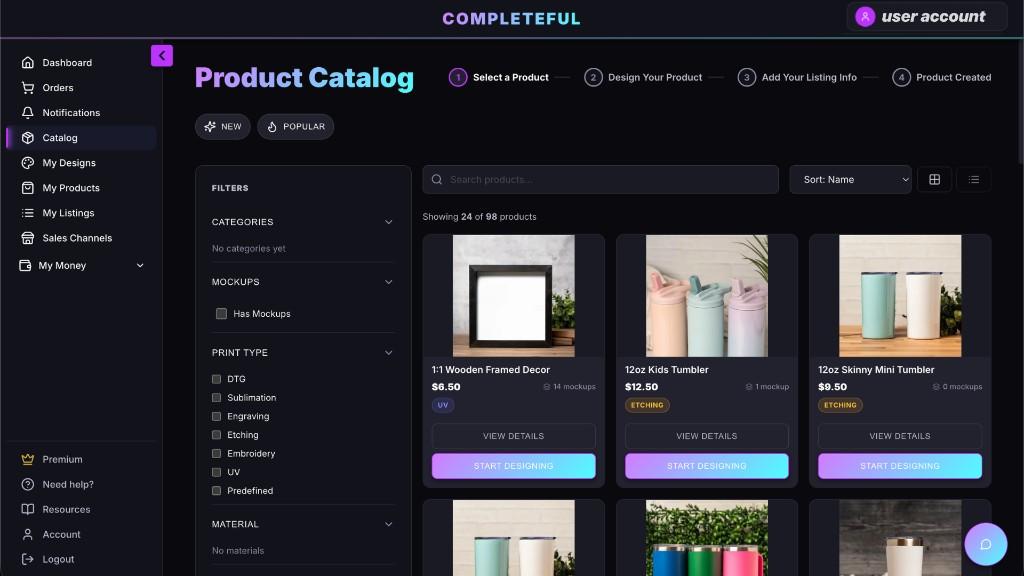
- In your Completeful dashboard, go to Catalog.
- Browse by category (Apparel, Drinkware, Home & Living, etc.).
- Click on a product to open its details, including print area, colors, and sizing info.
Tip:
Start with a best-seller (e.g., tumblers, mugs, tees) to test your first design.
Step 2 – Upload your artwork
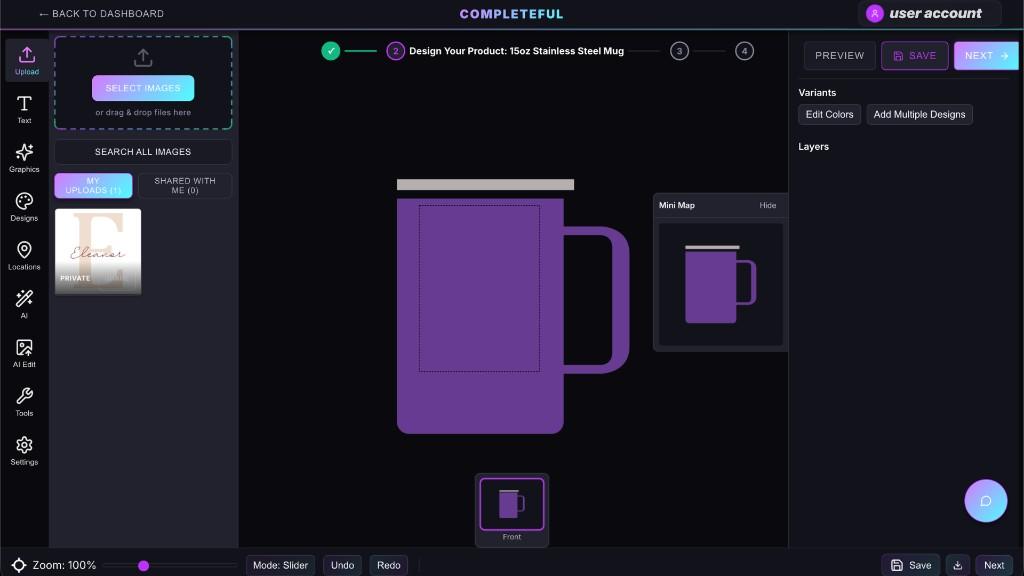
- Click Create product or Start designing on the product page.
- Upload your artwork file to the print area.
- Resize and position the artwork within the safe zone.
- Use multiple views or mockups if available to showcase the product clearly.
For file requirements, see Artwork upload guidelines and Supported file formats.
Step 3 – Configure variants and pricing
- Select the colors and sizes you want to offer.
- Set your retail price for each variant.
- Review your base cost and estimated profit per sale.
- Disable any variants you don't want to offer yet.
Tip:
Start with a smaller number of variants to keep inventory simple while you test demand.
Step 4 – Generate mockups and product details
- Use the mockup generator to create clean product images.
- Add a clear, keyword-rich product title.
- Write a concise, benefit-driven description that explains who the product is for and why it's unique.
- Add tags/keywords that match your niche, season, and audience.
Step 5 – Publish to your store
- Click Publish or Add to store.
- Choose which connected store and collection to send the product to.
- Confirm the listing details (title, description, images, pricing, variants).
- Publish the listing.
Your new product will now appear in your store as a live listing (or draft, depending on your settings).
Step 6 – Place a test order (recommended)
To make sure everything works correctly:
- Visit your storefront as a shopper.
- Add the product to cart and complete a test purchase.
- Confirm that the order appears in your Completeful dashboard.
- Track it through production and shipping.
Next steps
Once your first product is live:
- Create additional designs for the same product type.
- Test different niches and styles.
- Use our Auto-tagging & SEO and Smart Product Recommendations tools (if enabled) to optimize your catalog at scale.